
適合誰使用
使用 WooCommerce 管理線上商店商品資料的網站管理員與店家經營者
開始前準備
- 需先在 WP Admin 後台建立好至少一項商品,才能進行編輯
- 部分主題與頁面編輯器可能會完全覆蓋預設的 Edit product 畫面外觀
教學內容
如何進入產品編輯器
產品編輯器可在 WP Admin 後台的 Products > All Products 中,點選欲編輯商品的 Edit 按鈕進入
編輯畫面主要包含 Product name、Product description、Product data、Product short description、Reviews 等欄位,右側欄則有 Publish、Product image、Product gallery、Product categories、Product tags
Custom Fields 與 Slug 兩個面板預設為隱藏狀態
- 可透過畫面右上角的 Screen Options 分頁切換部分面板的顯示與隱藏
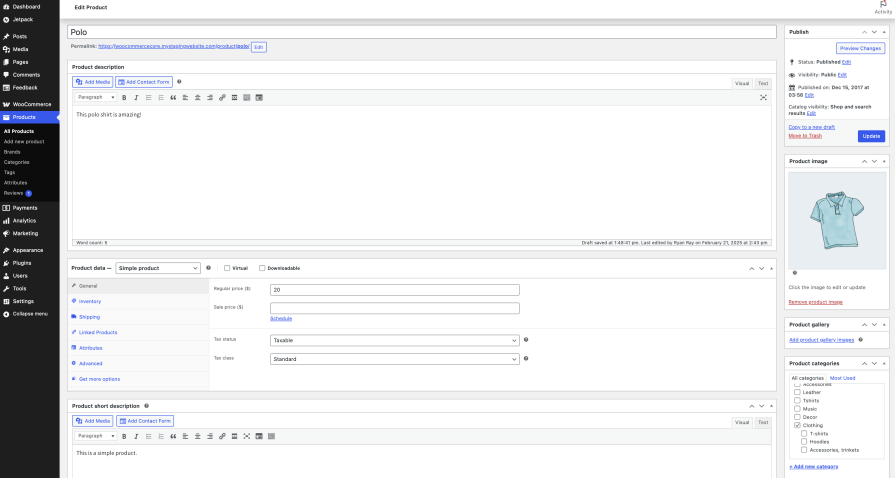
官方文件介面截圖:官方文件介面截圖 1
Product name 與 Product description
Product name 欄位支援文字、數字、特殊符號、emoji 甚至 HTML
修改既有商品的標題不會自動改變網址代稱(slug)
Product description 幾乎可容納任何內容,包括文字、圖片、影片嵌入、表格與 HTML
- 首次儲存後,可點選 Product name 欄位下方網址旁的 Edit 按鈕來修改 slug

官方文件介面截圖:The Product name field filled in with an emoji used. The permalink section and edit button are also visible.
Product data:Product type 與商品類型
Product type 預設為 Simple product,旁邊有 Virtual 與 Downloadable 兩個核取方塊
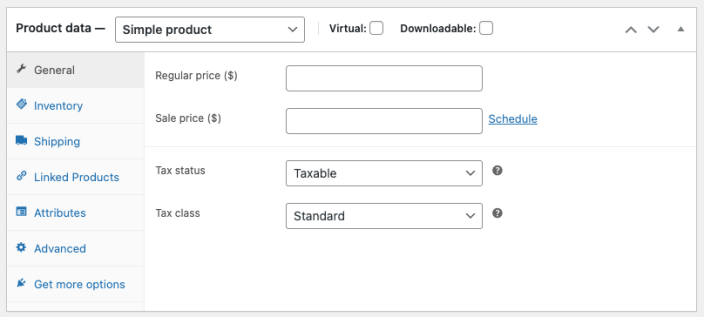
預設商品類型包含 Simple(簡單)、Grouped(組合)、External/Affiliate(外部/聯盟)、Variable(可變)
勾選 Virtual 會停用 Shipping 區塊,因為虛擬商品不需運送
General 一般設定區
Simple 與 External/Affiliate 商品類型可設定 Regular price 與 Sale price,點選 Scheduled 連結可新增排程起訖日期欄位
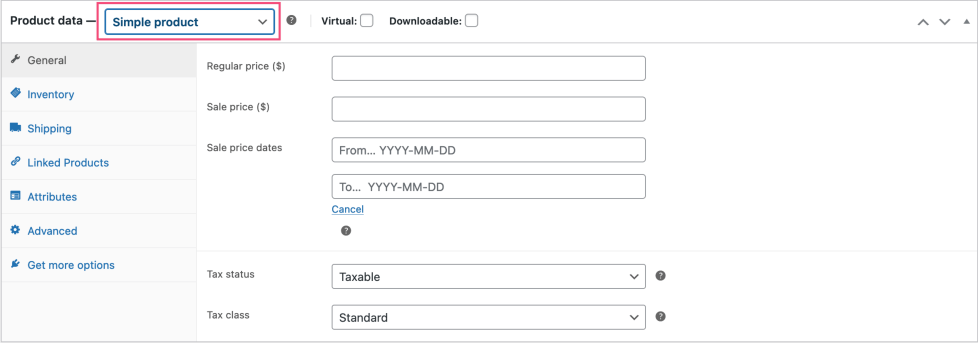
Tax status 可選 Taxable、Shipping only 或 None,Tax class 預設為 Standard
External/Affiliate 類型額外提供 Product URL 與 Button text 欄位
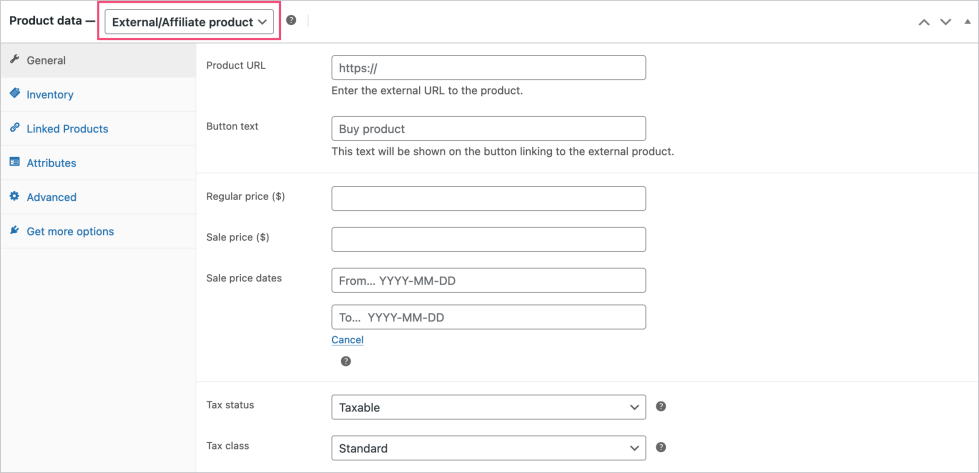
Inventory 庫存設定區
SKU 欄位最多可輸入 255 個字元,接受英數字與部分特殊符號
勾選 Stock management 後才會顯示 Quantity 欄位,用來追蹤庫存並在售完時自動標示為 Out of stock
Allow back orders 提供 Do not allow、Allow but notify customer、Allow 三種選項
- 若要啟用 Stock management 選項,需先至 Products > Inventory 開啟 Manage stock 全站設定
Shipping 與 Linked Products
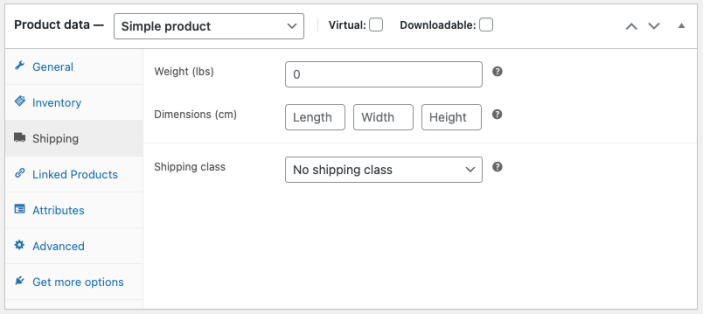
Shipping 區塊只出現在未標示為 Virtual 的 Simple 與 Variable 商品類型,包含 Weight、Dimensions、Shipping Class
Linked Products 區可設定 Upsells(加價購薦品)與 Cross-sells(購物車頁面的搭配銷售商品)
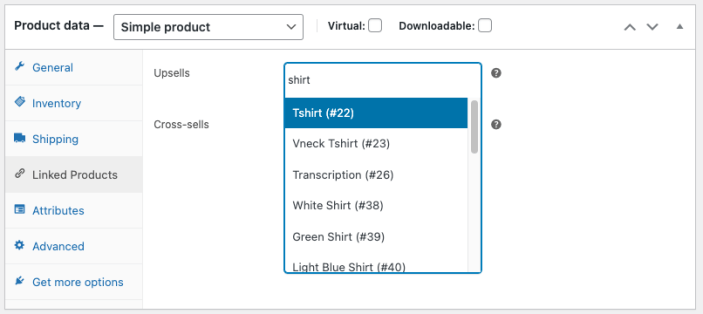
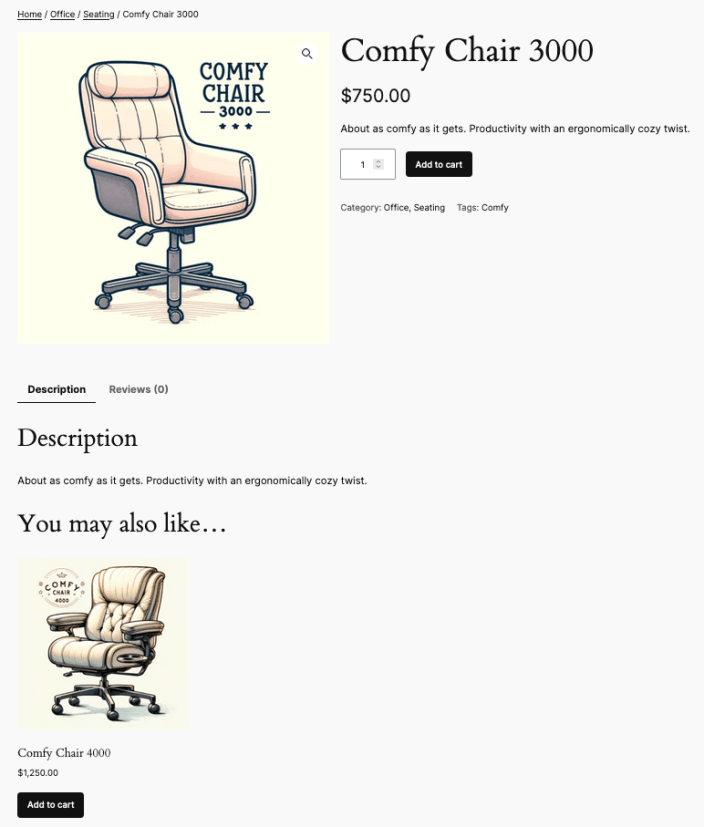
Upsells 會顯示在商品詳細頁,可用來鼓勵顧客升級購買更高階或更有利的商品
Cross-sells、Attributes 與 Advanced
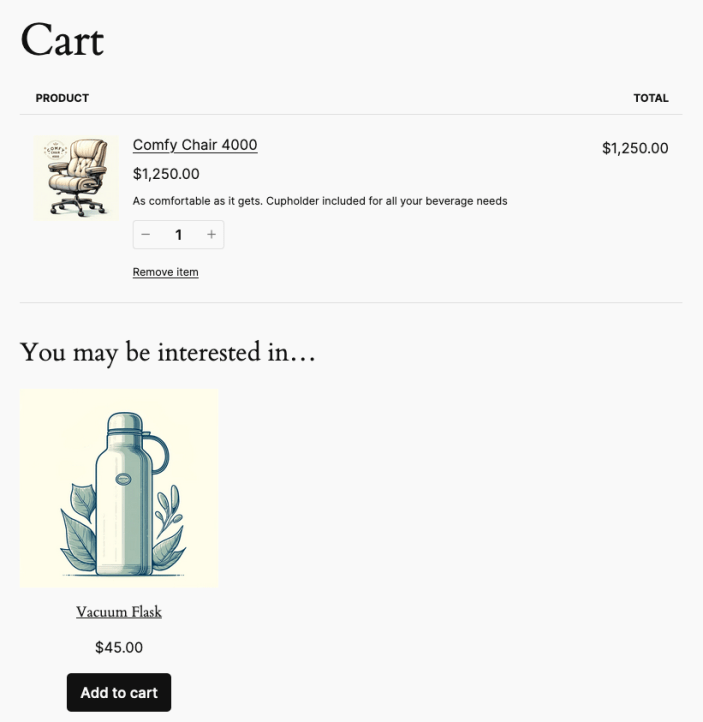
Cross-sells 會顯示在購物車頁,可推薦與購物車內商品互補或相關的商品
Attributes 區可透過 Add existing 選用 Products > Attributes 設定的全域屬性,或用 Add new 建立僅限該商品使用的新屬性
Purchase note 僅適用於 Simple 與 Variable 商品,會顯示在訂單確認畫面與相關郵件中
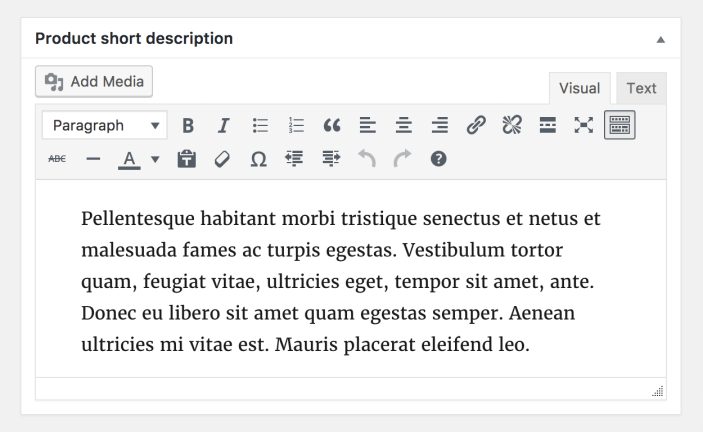
- Product short description 是長篇商品描述的簡短摘要,通常顯示在商品圖片旁,也可以嵌入影片
官方文件介面截圖:Advanced section 官方介面截圖 - Publish 面板可設定 Status(Published、Pending review、Draft)與 Visibility(Public、Password protected、Private)
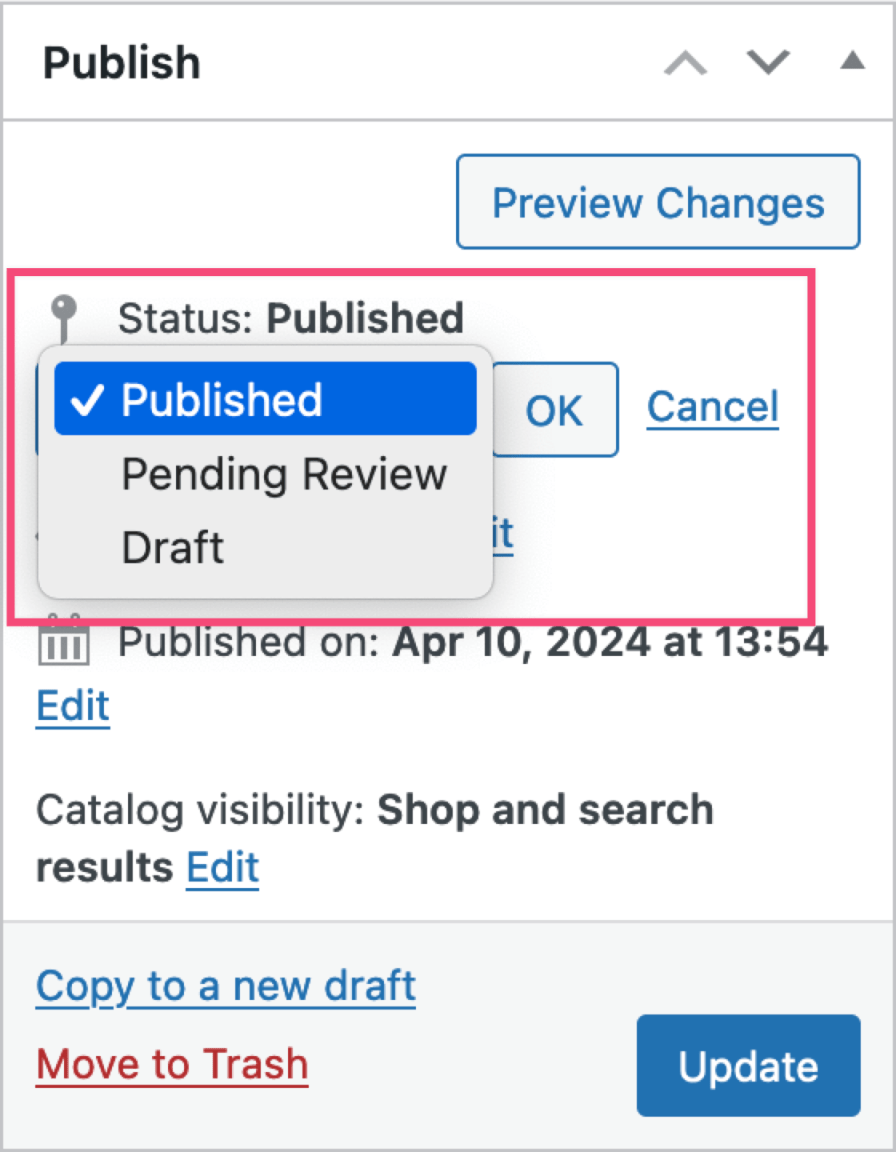
官方文件介面截圖:The publish panel with the Status section expanded to show the available options. 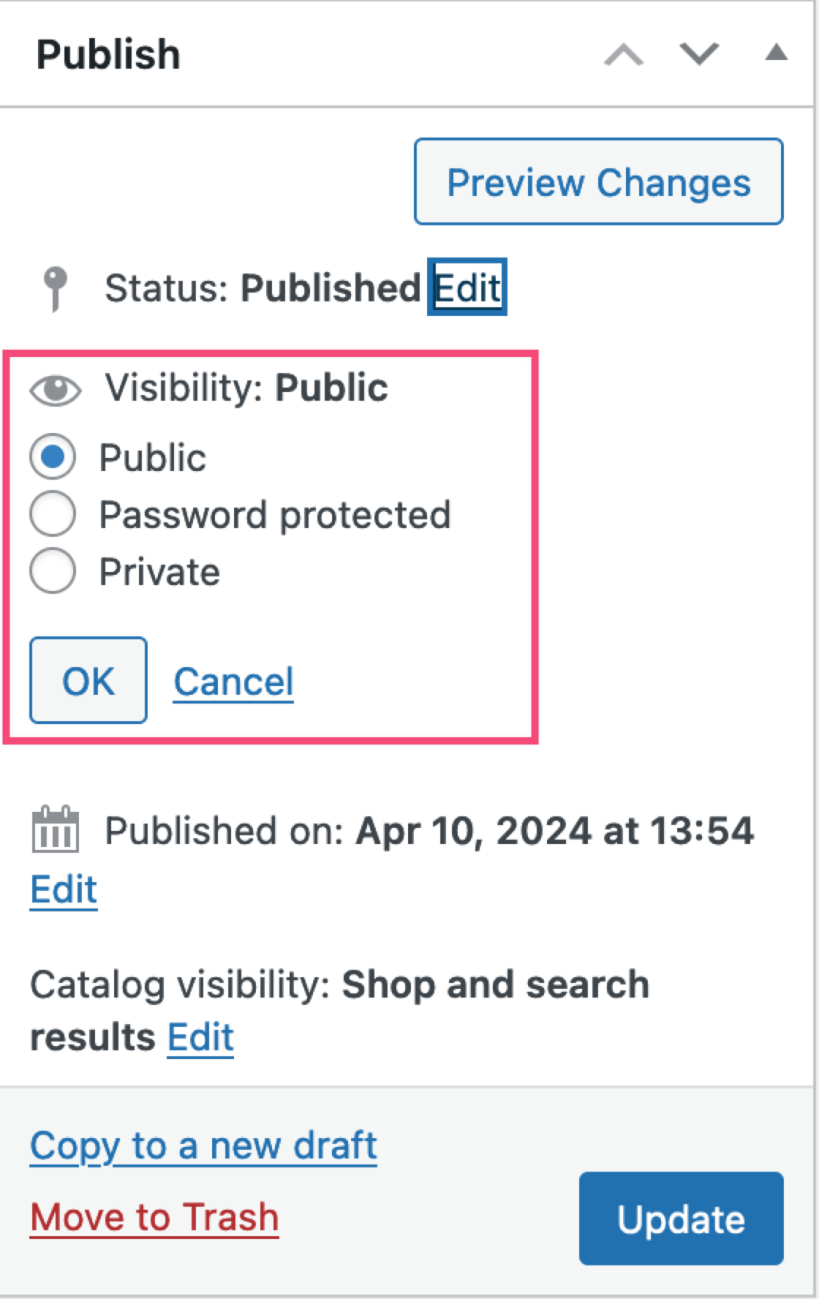
官方文件介面截圖:The publish panel with the post Visibility section expanded to show the available options. - Catalog visibility 可控制商品出現在 Shop and search、Shop only、Search only 或 Hidden
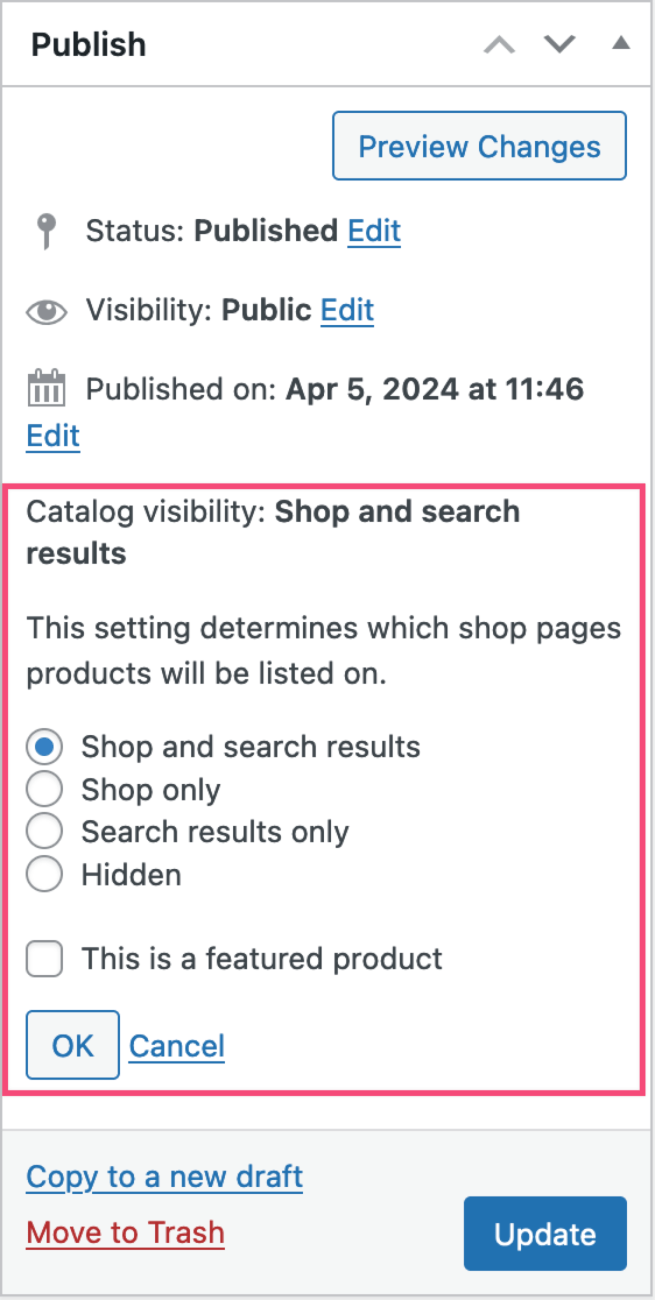
官方文件介面截圖:The publish panel with the Catalog Visibility section expanded to show the available options. - 點選 Copy to a new draft 按鈕即可複製該商品及所有設定為新商品,名稱後方會加上 (Copy)
商品圖片、分類與標籤
Product categories 面板包含 All categories 清單、Most used 常用分類,以及新增分類的連結
Product tags 可在欄位輸入新標籤並點選 Add 按鈕加入,加入後標籤旁會有可移除的「x」
- 點選 Add new category 連結後,可輸入新分類名稱並選擇 Parent category,再點選 Add new category 按鈕完成新增
介面名稱對照
Product type:設定商品的類型,預設為 Simple product,也可選擇 Grouped、External/Affiliate、Variable 等Virtual:標示商品為虛擬商品(如服務),勾選後不需運送,會停用 Shipping 區塊Downloadable:標示商品為可下載商品,勾選後會出現額外欄位供上傳下載檔案Stock management:控制是否針對該商品啟用個別庫存數量追蹤Sold individually:勾選後限制每筆訂單只能購買一件該商品Upsells:在商品詳細頁顯示,用來鼓勵顧客升級購買更高階或利潤更好的商品Cross-sells:在購物車頁面顯示,用來推薦與購物車內商品相關或互補的商品Catalog visibility:控制已發佈商品出現在商店頁、分類頁或搜尋結果中的方式Copy to a new draft:點選後可複製該商品及所有設定,成為一個新的商品草稿